Claude Code Setup (Commercial / Non-Engineers)
A plain, jargon-free guide to get Claude Code running in VS Code and connected to Cred's tools — written for anyone, on Mac or Windows. No prior coding experience needed.
Just want to ask questions about Cred's code?
You only need Steps 1–4. The Google Cloud part (in Step 4) is optional — skip it unless you'll actually run data tools like dbt/BigQuery.
1. Install VS Code
The free editor from Microsoft where Claude runs. Download VS Code
- Download the Mac version from the link above.
- Open the downloaded
.zip— the blue Visual Studio Code icon appears. - Drag that icon into your Applications folder.
- Open it from Launchpad. If a security warning appears, click Open.
- Download the Windows installer from the link above.
- Open the
.exeand click Next on every screen. - Tick the "Add to PATH" option (usually already checked).
- Click Finish. VS Code opens on its own.
2. Install Claude Code
The easiest way is through the extensions store — no commands.
- Open VS Code.
- On the left sidebar, click the Extensions icon (four little squares). Shortcut: Cmd+Shift+X (Mac) / Ctrl+Shift+X (Windows).
- In the search bar, type Claude Code.
- On the result published by Anthropic (the one with the blue ✔ verified badge — not the look-alikes), click Install.
- The Claude icon appears in the sidebar. If it asks to install an extra component, accept it.
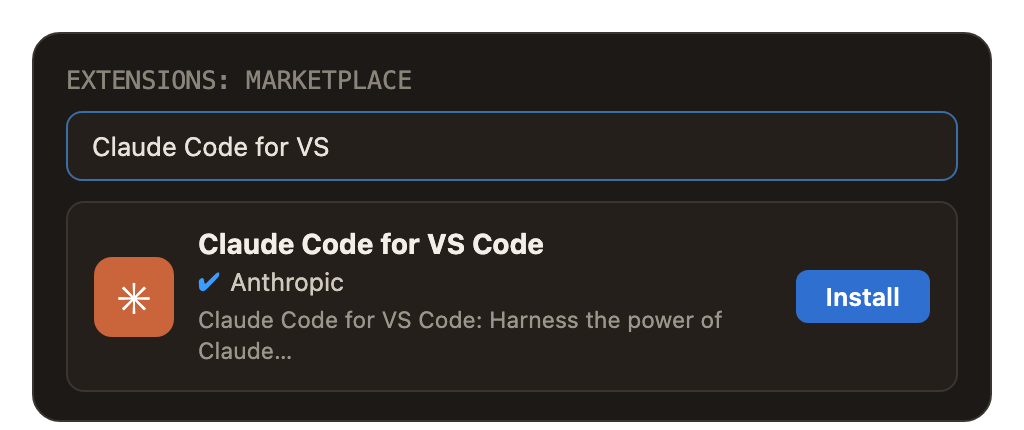
Pick the one by Anthropic with the ✔ badge — not the look-alikes below it.
About Node.js
In some cases Claude Code asks for Node.js. If that happens, download the LTS version from nodejs.org, install it, and reopen the editor.
3. Sign in & get ready
Connect your Claude account — done only once.
- Click the Claude icon in the sidebar.
- Click Sign in.
- Your browser opens. Log in with your Claude (Pro/Max) or company account.
- Click Authorize and return to the editor.
How do you know it worked?
A chat box appears. Test it by typing: "Hi, are you working?"
4. Set up your Cred workspace
The goal: put the projects you care about into one folder so you can ask Claude questions about Cred's code. You don't need to run anything — just download and open.
4.1 — Create the cred-local-workspace folder
- Open Finder → go to your Desktop.
- Right-click an empty spot → New Folder.
- Name it exactly
cred-local-workspace.
- Open File Explorer → go to your Desktop.
- Right-click an empty spot → New → Folder.
- Name it exactly
cred-local-workspace.
This is the single home for all the Cred projects on your computer.
4.2 — Download the projects with GitHub Desktop
The easiest way to download Cred's projects is the free GitHub Desktop app — no commands, just clicks. Download GitHub Desktop
- Open GitHub Desktop and sign in with your @credinvestments.com GitHub account (it asks on first launch).
- Go to File → Clone repository…
- In the list, find the project under credinvest (e.g.
credinvest/cred-dbt) — or paste its link. - Set Local path to your
cred-local-workspacefolder, then click Clone. - Repeat for each project you need (see 4.3).
You can also start from a project's GitHub page: click the green Code button → Open with GitHub Desktop.
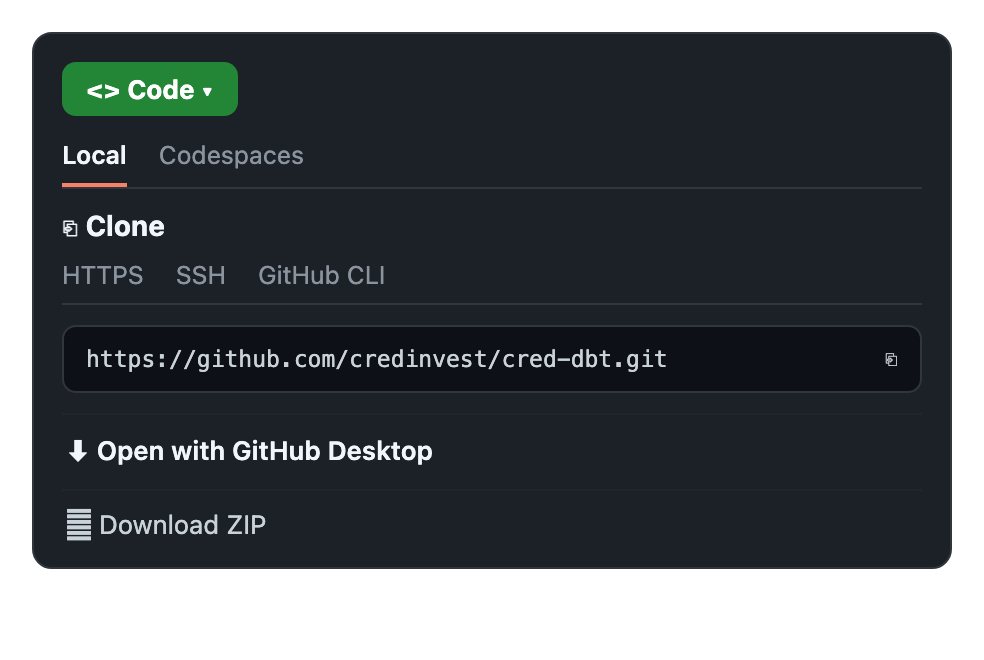
On the project's GitHub page, click Code → Open with GitHub Desktop.
Browse all Cred projects
They all live at github.com/credinvest.
4.3 — Which repos? (download the ones for your area)
You only need the projects for your work.
| Area | Repositories to download |
|---|---|
| Data / Dados | cred-dbt · cred-model · cred-scheduled-jobs |
| Backend (BE) | cred-platform-ts · cred-agent-ai · cred-mcp · cred-auth |
| Frontend (FE) | cred-platform-ts (web app lives here) · cred-web-admin |
| Docs / Planning | cred-wiki · plan-and-design-repo |
4.4 — Open the folder and start asking
- In VS Code: File → Open Folder… → select
cred-local-workspace. - If it asks "Do you trust the authors?", click Yes, I trust them.
- Open Claude and ask away, e.g. "What does the cred-dbt project do?" or "Where is the deal model defined?"
Optional — Connect to Google Cloud (only to run data tools / BigQuery)
You don't need this just to read code and ask questions. Skip it unless you'll actually run something that reaches Cred's data — for example running dbt or querying BigQuery.
Easiest: just ask Claude
Open Claude and type: "Install the Google Cloud CLI (gcloud) and help me log in." It runs the right steps for you and asks before doing anything.
Or do it yourself in the Terminal:
gcloud auth login
gcloud auth application-default login
gcloud config set project cred-1556636033881
Each line opens your browser — sign in with your @credinvestments.com account and click Allow.
Don't have the gcloud command yet?
Install the Google Cloud CLI first:
- In the Terminal, run:
brew install --cask google-cloud-sdk(needs Homebrew from brew.sh). - Close and reopen the Terminal, then run the 3 commands above.
- Download the installer from cloud.google.com/sdk.
- Run GoogleCloudSDKInstaller.exe and click Next through it.
- Reopen PowerShell, then run the 3 commands above.
Costs & real data
BigQuery queries run against real data and can cost money. Prefer read-only queries and avoid heavy runs unless needed. You only access what your Cred account is already allowed to see.
5. Using it day to day
You talk to Claude in plain English. A few handy tricks:
| You want to… | Just write / do this |
|---|---|
| Ask for something | Type in plain English: "Summarize this file" |
| Point to a file | Type @ and pick the file name |
| See ready-made commands | Type / (e.g. /help) |
| Start fresh | Use /clear |
| Connect tools | Use /mcp (see next section) |
Golden rule
Talk to it like a colleague: give context, state the goal, and say what NOT to do. The clearer the request, the better the result.
6. Connect Cred's tools (MCPs)
MCPs are connectors that let Claude reach the tools Cred uses (Google Drive, Linear, Slack…). You turn them on from the /mcp menu.
- In the Claude chat box, type
/mcpand press Enter. - A panel called MCP servers opens, listing every connector with a status:
- ✓ Connected — already working, nothing to do.
- ⚠ Needs Auth — needs you to log in once.
- Click the connector you want that shows ⚠ Needs Auth (e.g. Gmail or Slack).
- Your browser opens — log in with your Cred account and click Authorize.
- Back in Claude, the status turns to ✓ Connected.
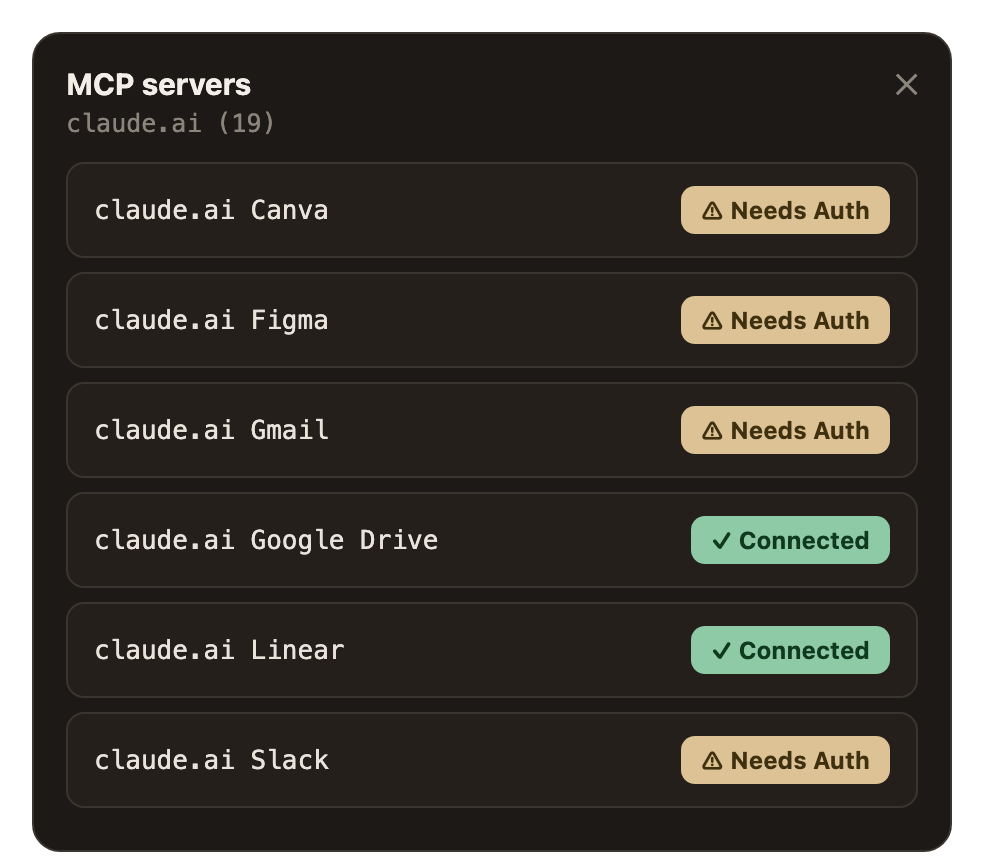
The MCP servers panel. Green = ready, beige = needs login.
Use your Cred (work) account
When a connector asks you to log in, always use your @credinvestments.com account so Claude sees the right company data.
The connectors you'll see
| Connector | What it lets Claude do |
|---|---|
| Google Drive | Read and search Cred's documents, spreadsheets and slides |
| Linear | Look at and update tasks, issues and projects |
| Slack | Read and send messages, summarize channels |
| Gmail / Google Calendar | Read emails and check/manage your calendar |
Security first
Only connect tools with your official Cred account, and only the ones you're allowed to use. If unsure whether a connector is approved, check with your team before authorizing.
Looking for the engineer version?
For the CLI install and the full MCP-via-command setup (Figma, dbt Cloud, CircleCI, etc.), see Claude Code Setup under Development.
Whenever in doubt, the official source is the Claude Code documentation.